How to Use Coupons in the Metro App in Canada
Discover how to find, activate, and redeem Metro app digital coupons for grocery savings in Canada. This step-by-step guide shows you exactly how to use Metro’s mobile app for bigger discounts, with pro tips, a handy interactive checklist, and answers to all your coupon questions.

Why Use Digital Coupons in the Metro App?
The Metro app is Metro’s official mobile tool for Canadian grocery shoppers—letting you discover weekly flyer deals, earn Metro&moi rewards, and unlock exclusive digital coupons you can redeem instantly at checkout. Digital coupons are fast, paper-free, and often offer bigger savings than in-store flyers or mailers. Whether you shop at Metro Quebec or Ontario locations, using the app means you’ll never miss out on bonus discounts, personalized offers, or limited-time flash sales.
- No more paper clipping—just tap to activate offers
- Bonus savings and personalized deals, only available in-app
- Easy in-store redemption—scan your card or app at checkout
- Track your savings and coupon redemptions in real time
Step-by-Step: How to Use Coupons in the Metro App (Canada)
- Get the Metro app from the App Store (iOS) or Google Play (Android).
- Open the app and register your free account. Link your Metro&moi rewards for extra offers.
- Tap the “Coupons” or “Offers” tab on the app’s home screen.
- Browse all available digital coupons for your local Metro store.

- Tap the “Clip” or “Activate” button beside each offer to load it to your account.
- Look for exclusive “Just for You” or Metro&moi bonus coupons.
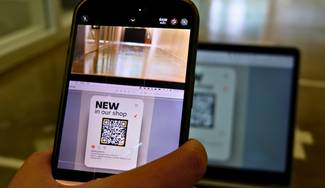
- Shop as normal. At checkout, scan your Metro&moi card—or let the cashier scan your app barcode.
- Digital coupons are applied automatically to qualifying items.
- If a coupon fails to apply, show the clipped offer in your app to the cashier.
- View redeemed coupons and total savings under the “My Offers” or “Savings” section.
- Check your Metro&moi account for points earned.
Track Your Progress: Metro App Coupon Checklist
Pro Tips: Maximize Metro App Coupon Savings
- New Metro app coupons usually drop on Wednesdays—check in weekly for fresh deals.
- Combine digital coupons with price matching for extra savings (where allowed by store).
- Clip all coupons you might use—even if unsure. Some offers are limited in quantity and may disappear if not clipped early.
- Set a phone reminder for expiring offers—Metro digital coupons are time-limited.
- Look for “Just for You” or personalized offers based on your shopping habits.
- Stack Metro app coupons with Metro&moi points offers for double rewards.
- If a digital coupon fails to scan, ask the cashier to manually enter your app barcode or show the clipped offer as proof.
Metro App Coupons vs. Other Grocery Apps in Canada
| App | Coupon Types | Personalized Offers | Stacking Allowed? | Works with Loyalty? | Notable Features |
|---|---|---|---|---|---|
| Metro App | Digital, flyer, Metro&moi exclusive | Yes (“Just for You”) | Sometimes (digital + Metro&moi, not with paper) | Yes (Metro&moi) | Personalized, regional, in-app only, auto-applied at checkout |
| Sobeys App | Digital, Scene+ offers, flyer | Yes | Sometimes (digital + Scene+) | Yes (Scene+) | Stack with Scene+ points, digital flyer integration |
| Loblaws/PC Optimum | Digital, PC Optimum, flyer | Yes (weekly personalized) | Rare (digital + points, not with paper) | Yes (PC Optimum) | Automated points, in-app digital coupons, load-to-card |
| Walmart App | Digital (regionally limited), flyer | Some locations | No (digital or paper, not both) | Limited | Price-matching at select locations, in-app flyer |